
Kindle
On iPhoneYour Kindle highlights, in the right book, with one tap.
Available now
Amazon publishes no way for an app to read your highlights, so Nook does the honest thing instead: it opens Amazon’s own highlights page inside the app and lets you press one button.
The scan happens on your phone, in the page you’re looking at. A complete scan of the book you asked for goes straight into its journal — and only there. Anything partial, or an edition Nook isn’t sure of, stops and waits for you to look it over.
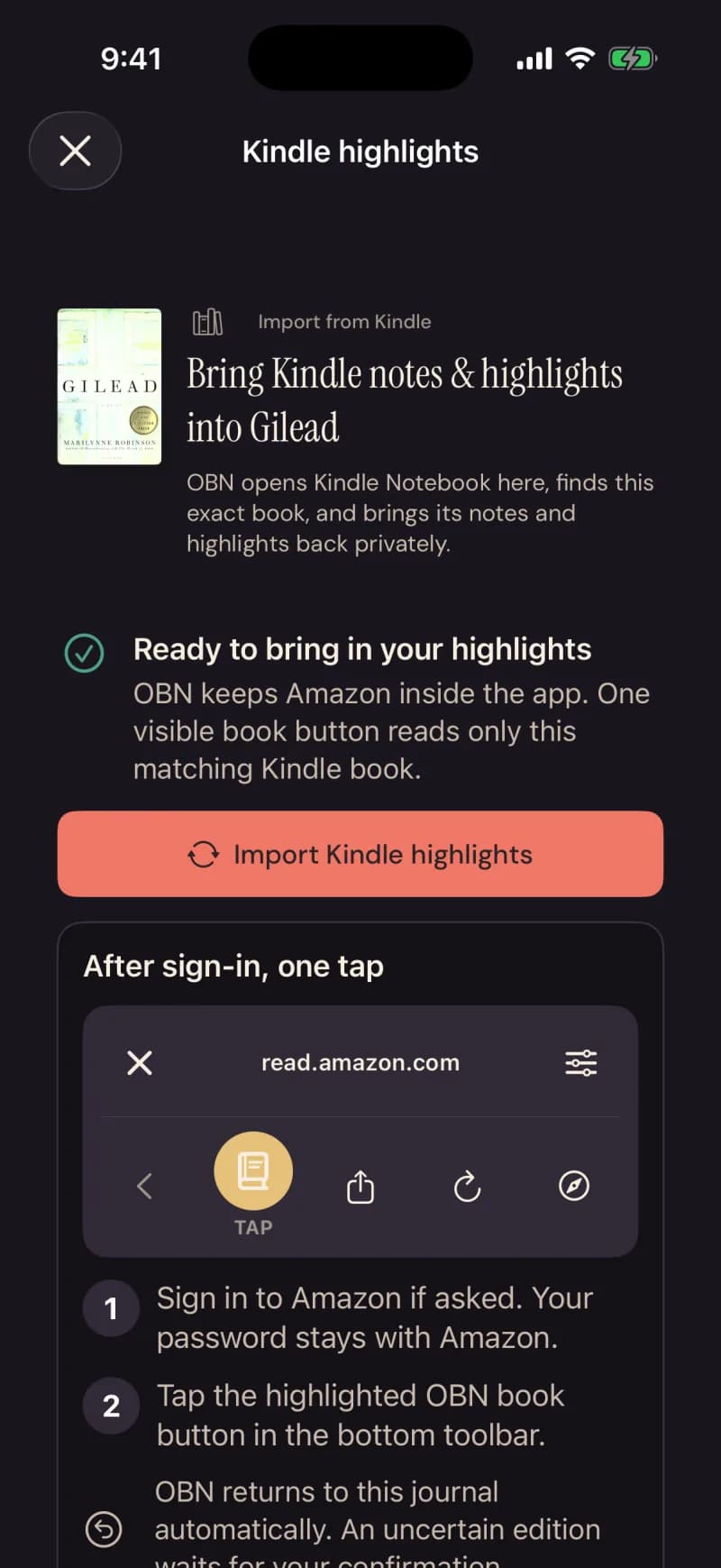
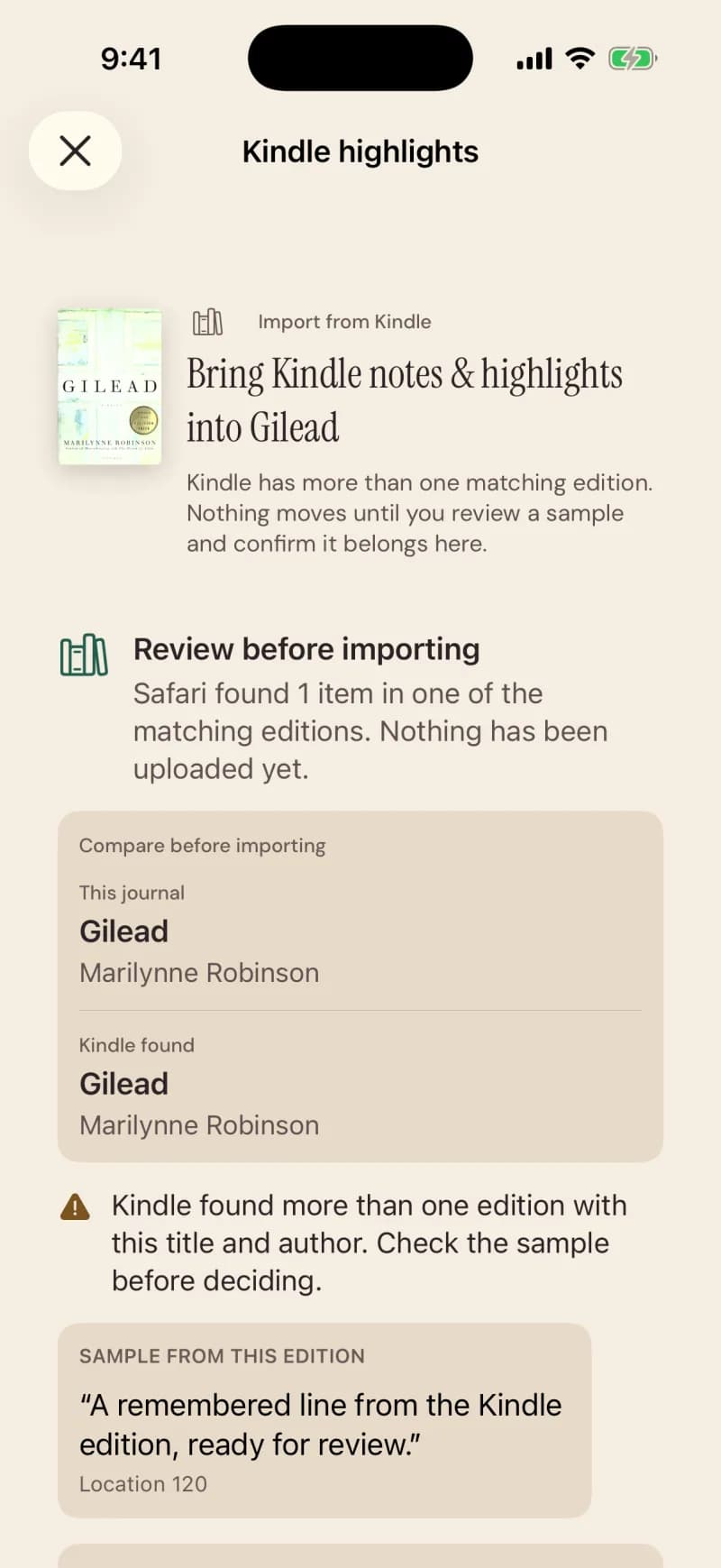
In these screens the app calls itself OBN — short for Our Book Nook.
Steps
- Add the book to your shelf in Nook, open its journal, and tap Import Kindle highlights — Sync Kindle highlights, after the first time.
- Amazon opens inside the app. Sign in if it asks; your password stays with Amazon.
- In Amazon’s bottom toolbar, tap the highlighted book button.
- A complete scan lands in the journal on its own; if anything is partial or unsure, look it over, then import.
What comes across
What stays private
Good to know
- From a book’s journal, one book per visit to Amazon — open the next book and tap again. To bring in many at once, Bring in from Kindle on your profile opens Amazon the same way; tap the same toolbar button, and Nook shows your Kindle library as a list to tick, with the count it found — one scan reaches as much as it can in its time, so a very large library can come in short. The books you tick come onto your shelf with their highlights in one visit, and if Amazon interrupts, Continue Kindle on your profile picks up where it stopped.
- Amazon lets publishers cap how many highlights can be exported; when that happens the import says partial and keeps what was verified. A very long book can run the scan out of time and say partial too, and offers Scan this book again.
- Only highlights that have already synced to Amazon’s cloud show up — if you’ve been reading off Wi-Fi, let the Kindle app or your Paperwhite sync first.
- Sync a book again any time; already-imported highlights never duplicate, and when a complete scan no longer finds a highlight you deleted in Kindle, it is removed here as well.
- Works with the US Kindle Notebook today.
- Remove imported Kindle data and Sign out of Amazon and disconnect are on each book’s Kindle highlights screen, under Manage Kindle data — one book at a time; Settings can sign you out of Amazon too. Your own notes stay through any of them.